Search
Search finds a conversation when you remember something about it: a phrase, the project, a command that ran, a file that changed, or a commit it made. For questions that need several searches and a written answer, use Deep Recall instead.
- App
- Sessions → Search conversations
- CLI
hansard history- In your agent
/recall
Search in the app
Section titled “Search in the app”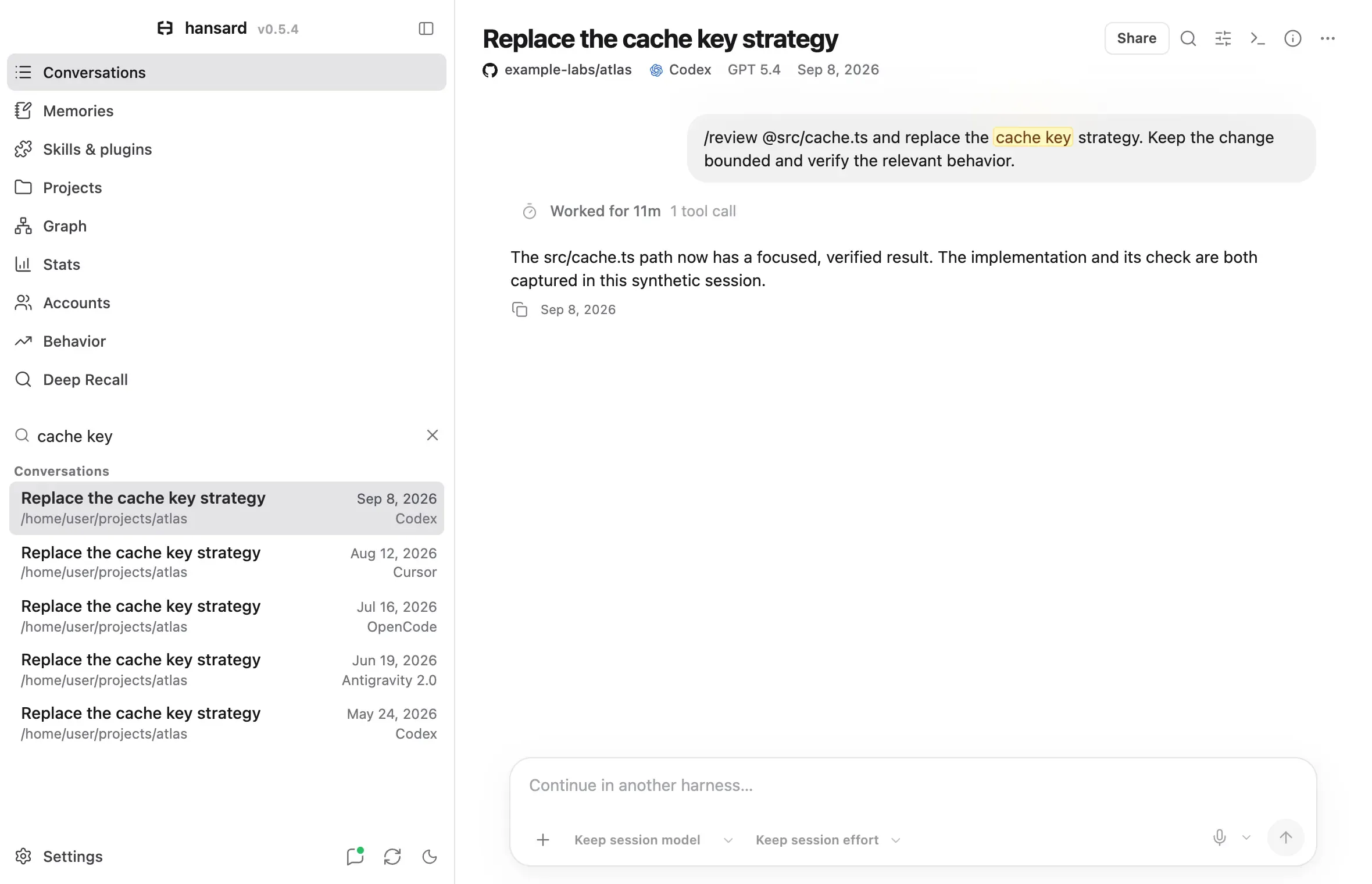
- Open Sessions in the dock.
- Select Search conversations (the search icon beside the conversation
count), or press
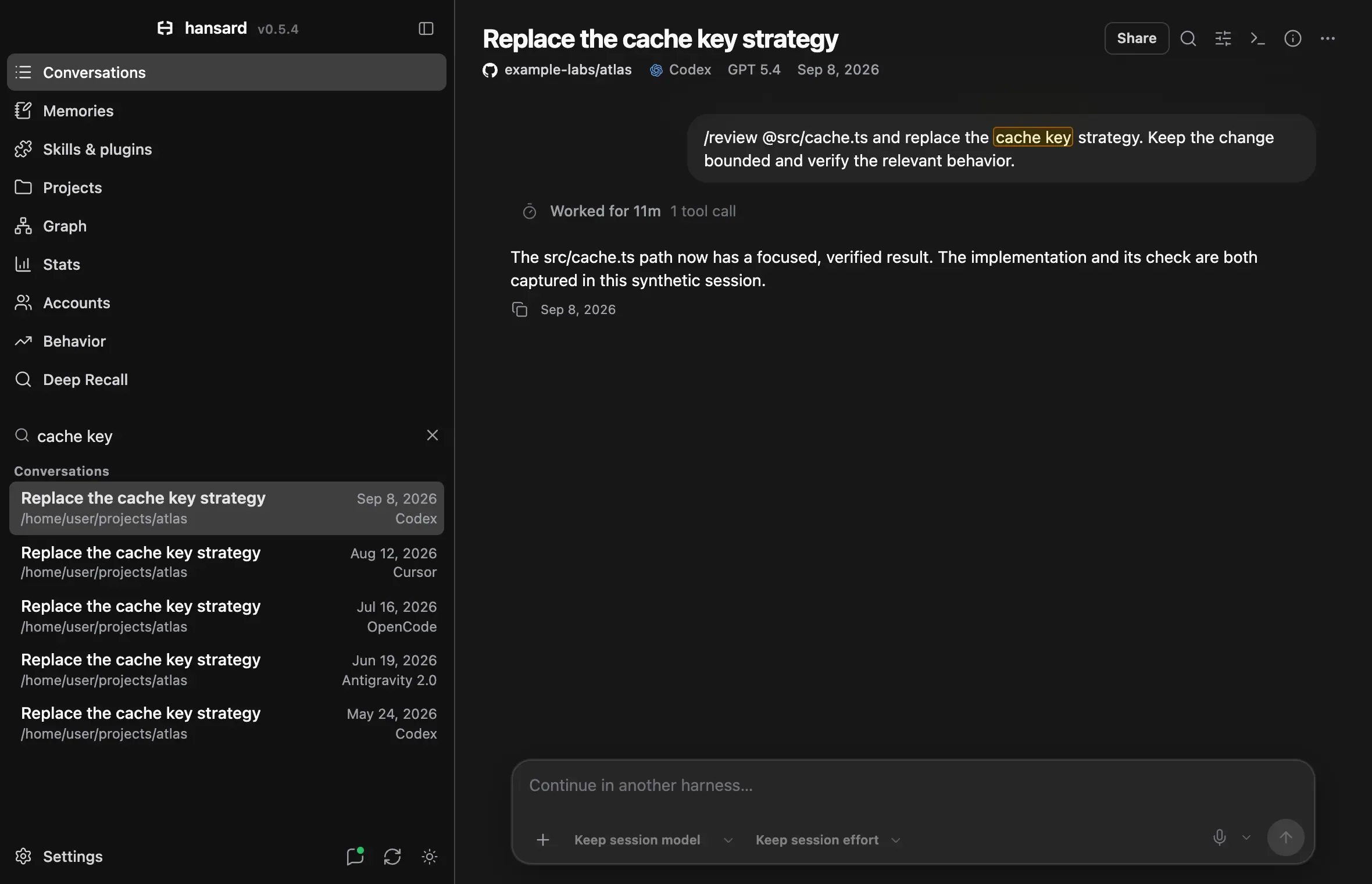
/. - Type a distinctive phrase from the request, the response, or the tool output. The sidebar changes to Search results, with matching Projects & folders first and matching Conversations below them.
- Each result shows an excerpt with the matched words highlighted. Select a result to open the conversation at the matching message, with find in transcript started on the match. The first matching conversation opens automatically, and the arrow keys move through the results.
- With the conversation open, press
nfor the next matching message andShift+Nfor the previous one. - To return to the full list, select Close search.
Search terms do not need to match a title. Two to six distinctive words, such as a feature name, an error string, or a file name, work better than a full sentence.
| Type | To find |
|---|---|
cache |
Words that start with it. Words shorter than three characters match whole words only. |
"rate limiter" |
The words together, in this order. |
sqlite-vec, search.js |
Words joined by -, ., _, /, :, or @, matched as a phrase. |
-staging, -"dry run" |
Passages without that word or phrase. |
Case and accents are ignored, so café matches cafe. Chinese, Japanese,
Korean, and Thai terms match text that starts with them after a space or
punctuation. The same syntax works in hansard history and in agent recall.
You can change the search shortcuts in Settings → Shortcuts.
Filter the list
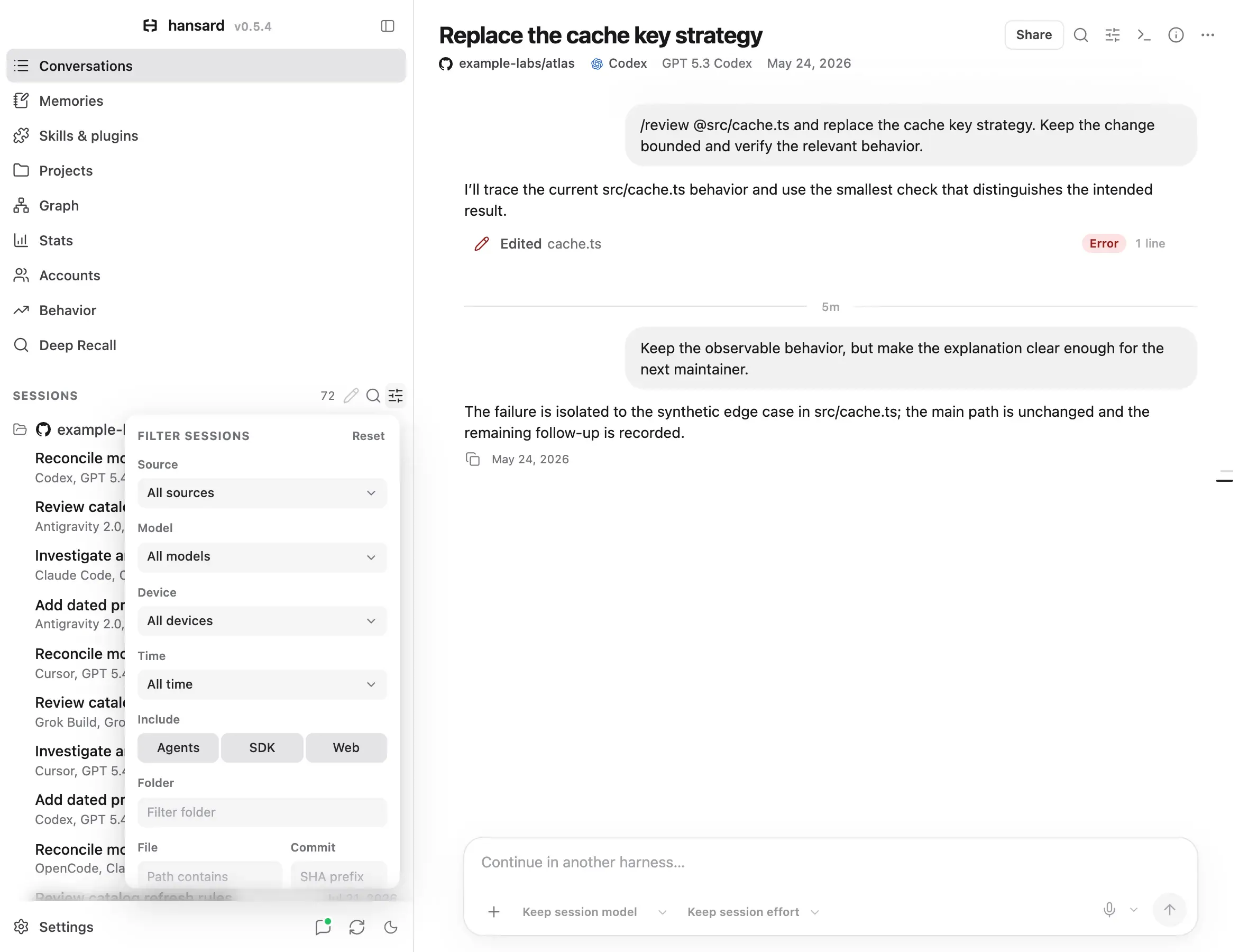
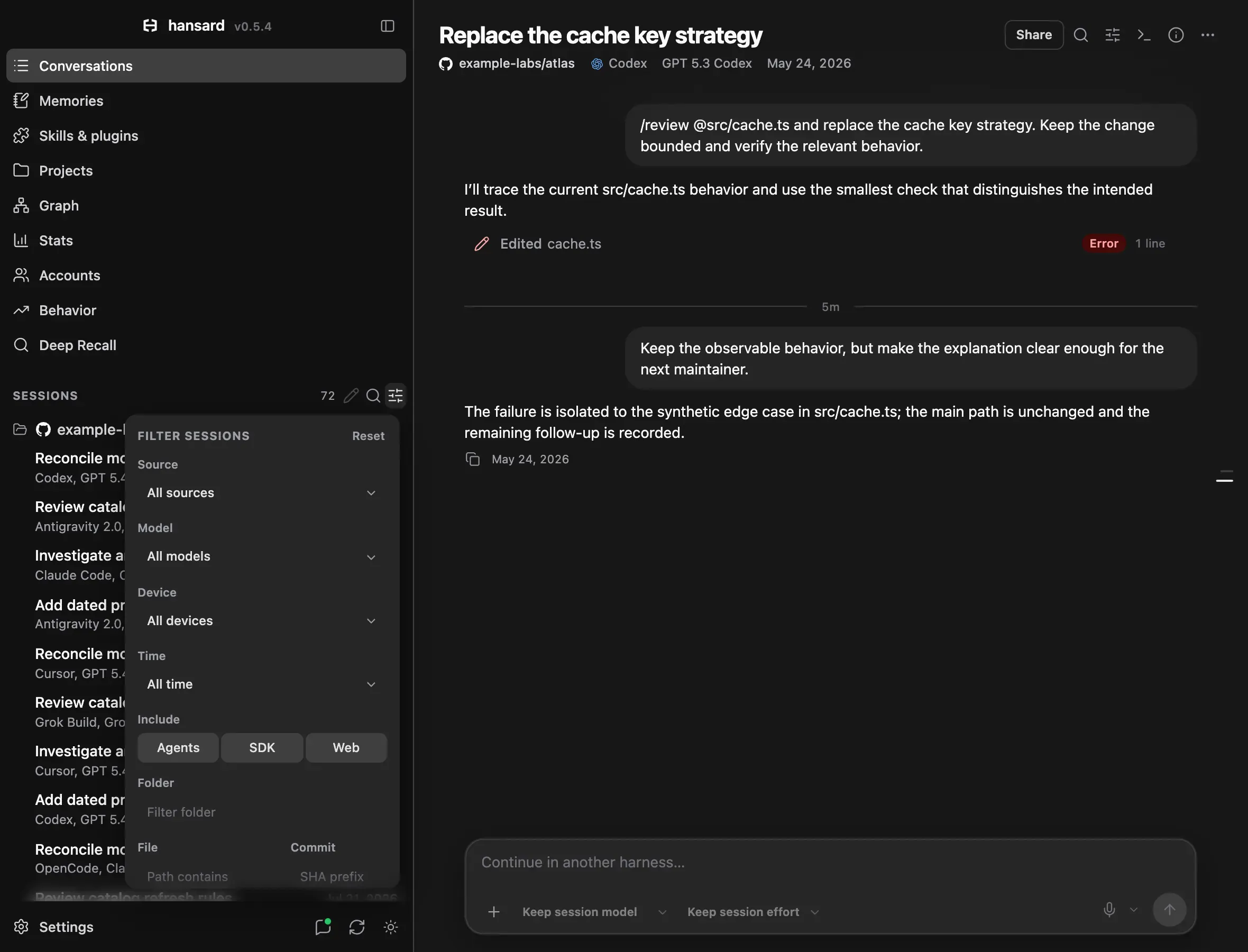
Section titled “Filter the list”Filter & sort (the sliders icon beside the search icon) narrows the conversation list. Filters apply with or without search text.
| Filter | What it limits |
|---|---|
| Source | The harness a conversation came from, such as Codex CLI, Claude Code CLI, or Cursor. |
| Model | The model recorded for the conversation. |
| Device | The device that ran the conversation: this computer or a device that synced to it. Imported web conversations belong to an account rather than a device, so a device filter hides them. |
| Person | Who ran the conversation. Appears only when the archive holds conversations from more than one person. |
| Time | All time, Last 7 days, Last 30 days, Last 90 days, or Last 180 days. |
| Include | Agents (interactive coding agents), SDK (programmatic Codex and Claude SDK sessions), and Web (imported ChatGPT, Claude.ai, and Gemini conversations). |
| Folder | Part of a folder path or project name. |
| File | Conversations that edited a file whose path contains this text. |
| Commit | Conversations that recorded a commit starting with this SHA. Enter at least 7 hexadecimal characters. |
Select Reset at the top of the filter panel to clear every filter. Do this before you conclude that a conversation was never imported.
To hide imported web chats by default, open Settings → General and turn off Show web chats in Conversations. The setting changes what the list shows, not what Hansard archives.
Find text inside one conversation
Section titled “Find text inside one conversation”Archive search finds conversations. To find text inside the conversation you
have open, select Find in transcript (the search icon in the conversation
header) or press Cmd+F on macOS or Ctrl+F elsewhere. Press Enter for the
next match and Shift+Enter for the previous one.
Find searches only the messages the View menu currently shows. Choose View → Everything to include every kind of message. When find cannot reach part of the transcript yet, such as earlier messages that are not loaded or tool cards that are still closed, an info icon appears after the match count. Point to it to see what the search leaves out.
Search from the CLI
Section titled “Search from the CLI”List the 20 most recent conversations:
hansard historySearch by text. Text searches return 10 results unless you set --limit:
hansard history "authentication migration" --since 90d --limit 20Combine text with filters, or use filters alone:
hansard history --repo github.com/example/app --provider codex-clihansard history "cache invalidation" --tool apply_patchhansard history --command "git commit" --since 30dhansard history "flaky test" --folder ~/code/app| Option | What it matches |
|---|---|
--repo <repo-or-path> |
A repository such as github.com/example/app, a working directory, or a displayed path. Path fragments work. |
--project <project> |
One configured project: a merge, path-rule, or portfolio ID, or a route key such as merge:<id> or rule:<id>. See Projects and coordinators. |
--folder <path> |
Conversations whose working directory is at or under a path. ~ expands. |
--provider <source> |
A harness or source ID, such as codex-cli, claude, or cursor. See Supported harnesses. |
--tool <name> |
Conversations that called a tool, such as apply_patch or Bash. |
--command <head> |
Conversations that ran a shell command, matched on its first words, such as git commit. |
--file <path> |
Conversations that edited a file. |
--commit <sha> |
Conversations whose shell output confirmed a git commit. |
--since <window> |
A date window such as 7d, 30d, or 90d. |
--limit <count> |
The number of results. |
--include-subagents |
Also include subagent runs, which the default list hides. |
--no-web-chats |
Exclude imported web chats. |
--json |
Print results as JSON for scripts and agents. |
--markdown-fallback |
A recovery search for old archives that predate the current index. Normal searches do not need it. |
Each JSON result includes the session_id, the harness, the repository and
working directory, the matched text with an excerpt, a score, and whether the
conversation was received from another device.
Find conversations by file or commit
Section titled “Find conversations by file or commit”To find every conversation that edited a file, pass a file name, a trailing path fragment, or a full path. The match is case-insensitive:
hansard history --file src/server/auth.tsTo find the conversation that made a commit, pass 7 to 40 characters of its SHA:
hansard history --commit 1a2b3c4Both filters read what Hansard recorded at import time. The commit filter uses
the confirmation line that git commit printed in the archived shell output.
Hansard never inspects your repository, so a listed commit may since have been
amended or reverted.
Find the conversation that wrote a line
Section titled “Find the conversation that wrote a line”hansard why names the archived agent edit that last wrote one line of a file:
hansard why src/server/auth.ts:120hansard why src/server/auth.ts:120 --all --jsonHansard matches the line’s current text, and its neighbors when the line is
short or repeated, against the lines that recorded file edits added. Edits made
in another checkout or worktree of the same repository count. The result names
the session, the edit’s time and tool, your prompt before the edit, and the
agent’s last words before it. In a Git checkout it also shows the commit that
last changed the line and any archived session that recorded that commit;
--no-git skips that lookup.
--all lists every archived edit that wrote the text instead of the latest
three, and --limit N sets how many of the most recent sessions that edited
the file are searched (200 by default). Edits made through shell scripts,
other tools, or by hand are not recorded as file edits, so their lines report
no archived author.
Read a result
Section titled “Read a result”Print a whole conversation as readable text:
hansard show <session-id>A long conversation can exceed what an agent or terminal will display. Read the latest 20 messages first:
hansard show <session-id> --json --msg-limit 20Read the opening messages, where the original goal usually is:
hansard show <session-id> --json --msg-offset 0 --msg-limit 8Without --msg-offset, a windowed request returns the latest messages. Windowed
output leaves out the full Markdown and event copies and shortens very large
tool output, but it keeps every tool call’s arguments. For more ways to read a
conversation, see Browse conversations.
What search covers
Section titled “What search covers”Search looks at user prompts, assistant responses, subagent results, tool calls, and the first 600 characters of each tool result. Thinking and context cards are not searched. Conversations synced from your other devices are included and marked as received.
A search that finds nothing means no match exists in the indexed text. It does not prove that something never happened: the harness may not have been imported, the conversation may predate your import window, or the wording may differ.
Common questions
Section titled “Common questions”Can I search every coding agent’s history at once?
Section titled “Can I search every coding agent’s history at once?”Yes. One search covers every harness, project, and year in the archive,
including conversations synced from your other devices. To limit it to one
harness, add --provider, as in hansard history "retry budget" --provider claude.
Which agent conversation wrote this line of code?
Section titled “Which agent conversation wrote this line of code?”Run hansard why <file>:<line>. It names the archived agent edit that last
wrote the line, with the session, the time, the tool, and your prompt before
the edit. See Find the conversation that wrote a line.
Can my coding agent search my past conversations itself?
Section titled “Can my coding agent search my past conversations itself?”Yes. Install recall with hansard integrations add-to <agent>, then type
/recall and a topic in Claude Code, or ask the agent in plain language. See
Recall in your agents.
Does search cover thinking and tool output?
Section titled “Does search cover thinking and tool output?”Search covers prompts, responses, subagent results, tool calls, and the first 600 characters of each tool result. Thinking and context cards are not searched.
Troubleshooting
Section titled “Troubleshooting”A conversation you expect is missing. Select Reset in the filter panel
and check that Include has the right types turned on. Run hansard index status to
see whether indexing is paused. If the conversation still does not appear,
check that its harness is imported in
Supported harnesses.
Too many results. Add --repo, --provider, or --since, or use more
specific words.
--file or --commit returns nothing for older conversations. Older
archives may not record edited files and commits yet. Run
hansard rebuild --since all to add them without reimporting.
A result shows a path such as path:3f9a… instead of a folder. Folders
outside a Git repository use a stable storage key. The JSON result’s
repo_display and cwd fields show the readable path.