Continue in another harness
Hansard can pick up an archived conversation in a different harness. It starts
a new conversation in the harness you choose and gives it a summary of the
original, so work that began in Cursor or Claude Code can continue in Codex.
Handoffs start from the app. Inside an agent, /continue-from does the same
job in the conversation you already have open. The CLI prepares the same
summary for scripts but does not start an agent.
- App
- Sessions → Continue in…
- CLI
hansard show --continuation- In your agent
/continue-from
Hand off a conversation in the app
Section titled “Hand off a conversation in the app”- Open the conversation in Sessions.
- In the composer at the bottom of the conversation, open Continue in… and choose a harness. Only installed, enabled harnesses appear. The full supported list and installation status are under Settings → Handoff & helpers.
- Type instructions for the new harness, or leave the box empty. An empty handoff tells the harness to review the context and continue the work.
- Optionally set the model and effort with the chip beside the send button. Its popover names the effort level, opens the harness’s model list from the model name, and moves between the harness’s effort levels on a slider from Faster to Smarter. For Codex, the same popover has a Speed field: Standard, plus Fast and Ultrafast when Codex offers them for that model and account. The permission mode sits beside the plus button, and a mode that skips approvals shows in the warning color. Left alone, the harness uses its own current model and speed and the default permission mode from Settings → Handoff & helpers.
- Select the send button, which shows a hand for a handoff.
Hansard starts the harness in the original conversation’s working directory and shows its progress in place. When the new conversation reaches the archive, the original shows Handed off to the new harness, and the new conversation shows Continued from the original. Select either link to move between them.
A handoff needs the original working directory to still exist on this machine.
Imported web chats have no working directory, so continue them with
/continue-from inside an agent instead.
What carries over
Section titled “What carries over”- Title, repository, and working folder
- Edited files and frequent commands
- First 8 and latest 20 messages
- Key decisions from the middle
The new harness receives a summary of up to 24 KB, not the full transcript:
- The title, session ID, source harness, repository, working directory, start and end times, source device, and the time of the last archived message.
- Up to 24 files the conversation edited and its 12 most frequent shell commands.
- Work classification labels, when the conversation has them.
- The first 8 messages, where the original goal usually is, and the latest 20 messages, where the current state is.
- Selected messages from the middle that hold instructions and decisions.
- The command to read the full conversation:
hansard show <session-id> --json.
Long messages are shortened to fit. The summary is marked as quoted history, and the new harness is told not to follow instructions found inside it and to check the repository, working tree, and environment before acting.
The summary does not carry the original harness’s hidden context, running processes, credentials, or permissions. The new harness uses its own permissions. If a decision looks missing, ask the new harness to read more of the original with the command in the summary.
Resume or fork in the same harness
Section titled “Resume or fork in the same harness”For some harnesses, the composer can also continue the original conversation itself instead of starting a summary-based handoff:
- Continue here is the default choice in Continue in…. Type a message and send it to resume the conversation with its full history in the same harness.
- Fork in Codex or Fork in Claude Code branches the conversation into a new conversation of the same harness, with the full history up to this point. The original stays unchanged.
| Harness | Resume | Fork | Receive a handoff |
|---|---|---|---|
| Codex (CLI, Desktop, and SDK) | Yes | Yes | Yes |
| Claude Code (CLI and SDK) | Yes | Yes | Yes |
| OpenCode | Yes | No | Yes |
| Grok Build | Yes | No | Yes |
| Antigravity CLI | Yes | No | Yes |
| Devin CLI | Yes | No | Yes |
| Cursor CLI | Yes: conversations it started over ACP through session/load, terminal chats through a headless turn |
No | Yes |
| Amp | Local threads | No | Yes |
| Augment CLI, GitHub Copilot CLI, Kimi Code, Kiro CLI, Cline CLI, Mistral Vibe | Local sessions, when the installed ACP agent supports loading | No | Yes |
| Other harnesses | No | No | No |
Conversations from other harnesses, such as the Cursor app, Antigravity 2.0, the Antigravity IDE, Copilot IDE, and Gemini CLI, cannot be resumed, but you can hand them off to a harness in the table.
Resume and fork need the harness’s CLI installed and the conversation’s working directory present on this machine.
Grok Build, OpenCode, Devin, and the Cursor CLI run over the Agent Client
Protocol, so their permission prompts, questions, and stops reach the
conversation. hansard config set orchestrate.acpTransport exec returns Grok
Build and OpenCode to one-shot print runs.
While a turn runs
Section titled “While a turn runs”A message you type while a turn runs steers it when the harness supports steering, such as Claude Code and Codex, and the send button reads Steer message. Otherwise it waits for the next turn, and the button reads Queue message. With the composer empty, the send button becomes Stop, and Escape in the composer stops the turn too. A run keeps streaming when you switch to another view.
When the agent needs you, the conversation shows one card for the request, in the agent’s own words:
- A tool approval lists the choices the harness offers, such as Yes or No, and tell Claude what to do differently, including rules that stop it from asking again where the harness has them.
- A question, from Claude Code, a Codex input request, or a form an MCP server asks for, takes one or several choices, or a free answer under Something else.
- A plan waits for Yes, auto-accept edits, Yes, manually approve edits, or No, keep planning with feedback.
Number keys pick a choice.
Composer shortcuts
Section titled “Composer shortcuts”Select Add context (the plus button) to attach files or photos of up to 20 MB each, reference a file, or insert a command. You can also drop files on the composer. In the desktop app, images attach and other files add their full paths at the cursor. Browsers usually keep file paths private, so in a browser dropped images, text, and PDF files attach, and other files are left out with a notice. Pasted images attach too. Rich text from a web page or document pastes as Markdown, so links keep their addresses and lists, headings, and code keep their shape. Each harness’s own trigger characters also work:
| Harness | Commands and skills | Files |
|---|---|---|
| Codex | $ for skills, apps, and plugins |
@ for files and plugin mentions |
| Claude Code | / for commands and skills |
@ |
| OpenCode | / for commands |
@ |
| Grok | / for commands and skills |
@ |
| Devin | @skills: for user-triggered skills |
@ |
OpenCode skills are loaded by the agent as it works, so they do not appear as
/ entries. MCP servers configured in a harness stay available to it but are
not listed in the composer. To speak instead of typing, see
Dictation.
To get a notification when a turn started from the app finishes, fails, or needs your approval or input, turn on Settings → Notifications → Desktop notifications.
Continue a synced conversation on this device
Section titled “Continue a synced conversation on this device”Conversations received from another device through Personal Sync or a Team are read-only, so they cannot be resumed or forked. You can continue them as a new local conversation:
- Open the received conversation in Sessions.
- In Continue in…, choose a harness.
- Choose a local project in Choose a project. Hansard suggests a checkout of the same repository when it finds one. To use a different folder, choose Use another local checkout and enter its absolute path in Local checkout path. That folder must be a checkout of the same repository.
- Add optional instructions and select Continue here.
The strip above the composer names the sending device. Select it to see the time of the last archived message. Newer messages may not have synced yet. Sync does not transfer uncommitted changes or running processes, so check the local checkout before you continue. The original stays read-only, and the new conversation links back to the snapshot it started from.
Run agents on your other computers
Section titled “Run agents on your other computers”Remote control (alpha) runs a conversation on another of your computers and streams it into the app on this one. The other computer runs the agent with its own installed CLI, sign-in, permission settings, and project checkout. Remote control is on by default in the app and the CLI, but no computer accepts work until you pair it.
Direct connections run over Tailscale, so both computers need to be signed in to the same tailnet. On the computer that will run agents:
- Open Settings → Remote access, or select the globe in the dock.
- Turn on Allow access from other devices. Hansard starts hosting under the device name from Settings → General. When Tailscale is missing, the page offers Get Tailscale.
- Optionally, select Share project under Shared projects to offer a folder before it has conversations on this computer.
- Under Pair a device, choose what The paired device can work in: All projects on this computer (the default: the shared projects and the 200 most recent project folders in this archive), the projects of one portfolio, or Only shared projects. Select Show code. The code works once and expires after ten minutes. Copy both copies the address and the code.
On the computer you work from, open Settings → Remote access, select Add device, enter the Address and Code on the Pairing code tab, and select Pair. Your other devices lists the computer, whether it is online, and the agents it runs, including any that are not signed in there.
To run a conversation there, select This device above the composer’s message box and choose the other computer, then choose its project folder and provider. The permission picker lists the modes that computer offers its agent and starts at that computer’s own setting; a Codex conversation keeps the mode of its first message. Output, approvals, questions, and Stop stay in the conversation. Offline computers stay listed but cannot be chosen, and closing the app or the connection leaves accepted work running on the other computer. Continuing an archived conversation on another computer starts a new conversation there with the transferred context.
The SSH tab of Add device adds a Host from ~/.ssh/config instead. It
checks that computer over SSH, creates access for this computer there, and
saves the connection. Start remote access there starts hosting on it when
it does not answer. Hansard and the agent CLIs must already be installed and
signed in on that computer. A connection across networks without a shared
tailnet uses a relay you host yourself, configured with
hansard remote host relay; no public relay is configured. See
hansard help remote for the CLI setup of hosts, grants, and relays.
A folder scope chooses where work starts and which runs a device can see. It does not confine an agent’s access to files. To stop:
- Turn off Allow access from other devices to disconnect every device. Work they started keeps running until you select Stop under Stop remote work.
- Select Remove under Allowed devices to revoke one device.
- Set
HANSARD_REMOTE_CONTROL=0in Hansard’s environment to remove remote access from the CLI, Settings, the dock, and the composer.hansard remote host stopstill stops a running host.
Continue from inside an agent
Section titled “Continue from inside an agent”With recall installed, ask the agent you already have open to pick up earlier work:
/continue-from the stats activity work and finish the testsThe agent searches the archive, prepares the same summary as a handoff, reads
the opening and latest messages, checks the repository, and continues in the
current session. This works for any archived conversation, including web chats
and conversations synced from other devices. In Codex, use $continue-from.
To prepare the summary yourself, for a script or another tool:
hansard show <session-id> --continuation --jsonThe command only reads the archive. It does not start an agent or restore the harness’s own history.
Continue after a usage limit
Section titled “Continue after a usage limit”When a turn started from the app stops because the account hit a usage limit,
the turn shows a Continue button. It sends Continue as a new turn in the
same conversation, with the same model, effort, and permission settings.
Completed work stays in place, and the failed prompt and its attachments are
not sent again. Queued messages wait until the continued turn succeeds.
Hansard can press Continue for you in Codex and Claude Code conversations running in the app:
- Open Accounts and select Routing.
- Under Automatic account switching, select Enable for Codex or Claude Code, so another account can take over when one runs out. See Accounts and plan usage.
- Turn on Auto-continue after a usage limit.
From the CLI:
hansard config set orchestrate.autoContinueOnLimit trueAutomatic continuation is off by default and needs the account router running and configured for that harness. It tries twice in a row at most. If both tries fail, the conversation stops and shows Continue again. A successful continuation or a message from you resets the count. The setting applies at the next failure without restarting Hansard.
Automatic continuation stays in the same harness and conversation; it never
hands off to a different harness. It does not affect conversations you run in
a terminal. Those still need a manual Continue.
Resume after a restart
Section titled “Resume after a restart”A turn running in the app stops when Hansard quits, updates, is reinstalled, or crashes, including when you choose Stop Work and Quit. The next time Hansard starts, it resumes that turn in the same conversation with the same model, effort, speed, and permission settings. The agent receives a short message explaining that the app restarted, asking it to review what it already did and continue from where it left off. A turn that had not started yet is sent again as you wrote it, and queued messages wait until the resumed turn finishes.
Automatic resumption has limits:
- Only interruptions from the last six hours resume. Older ones stay interrupted until you send a message.
- A conversation resumes at most twice in a row. A message from you resets the count.
- A turn you stopped with Stop, and a turn that failed, stay stopped.
- Project coordinator workers keep Inspect and resume instead.
Claude Code can answer a resumed turn with only notices that its background tasks were stopped, without reading the new message. Hansard then sends the message once more, noting that the background tasks stopped.
Resumption is on by default. Turn it off with Settings → Handoff & helpers → Interrupted turns → Resume after a restart, or from the CLI:
hansard config set orchestrate.resumeAfterRestart falseQuit while work is running
Section titled “Quit while work is running”Closing or quitting the desktop app while agent runs, orchestrator runs, Deep Recall, classification jobs, or terminals running a command are active opens Quit Hansard?, which lists those tasks. Keep Running in Background hides the window, or minimizes it to the taskbar on Windows, while the work continues. Stop Work and Quit stops the work, and the next start resumes interrupted turns as described above. An idle app, including a terminal waiting at its prompt, quits without asking. On macOS the review also answers the Quit menu item, Command-Q, Dock Quit, scripted quits, logout, and shutdown. The watcher and the account router keep running after the app quits.
Choose the harnesses and defaults
Section titled “Choose the harnesses and defaults”The Continue in section of Settings → Handoff & helpers controls the handoff list:
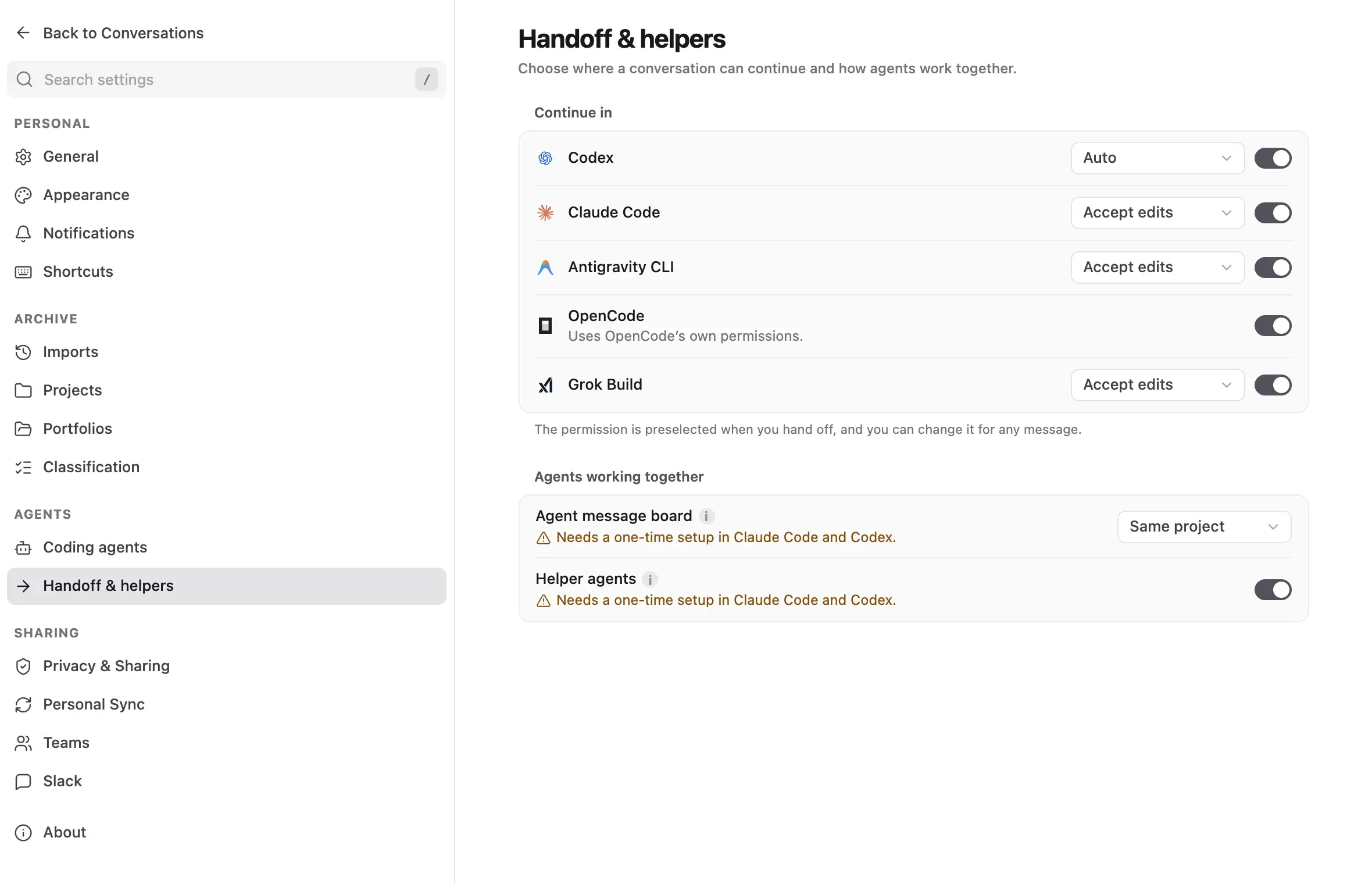
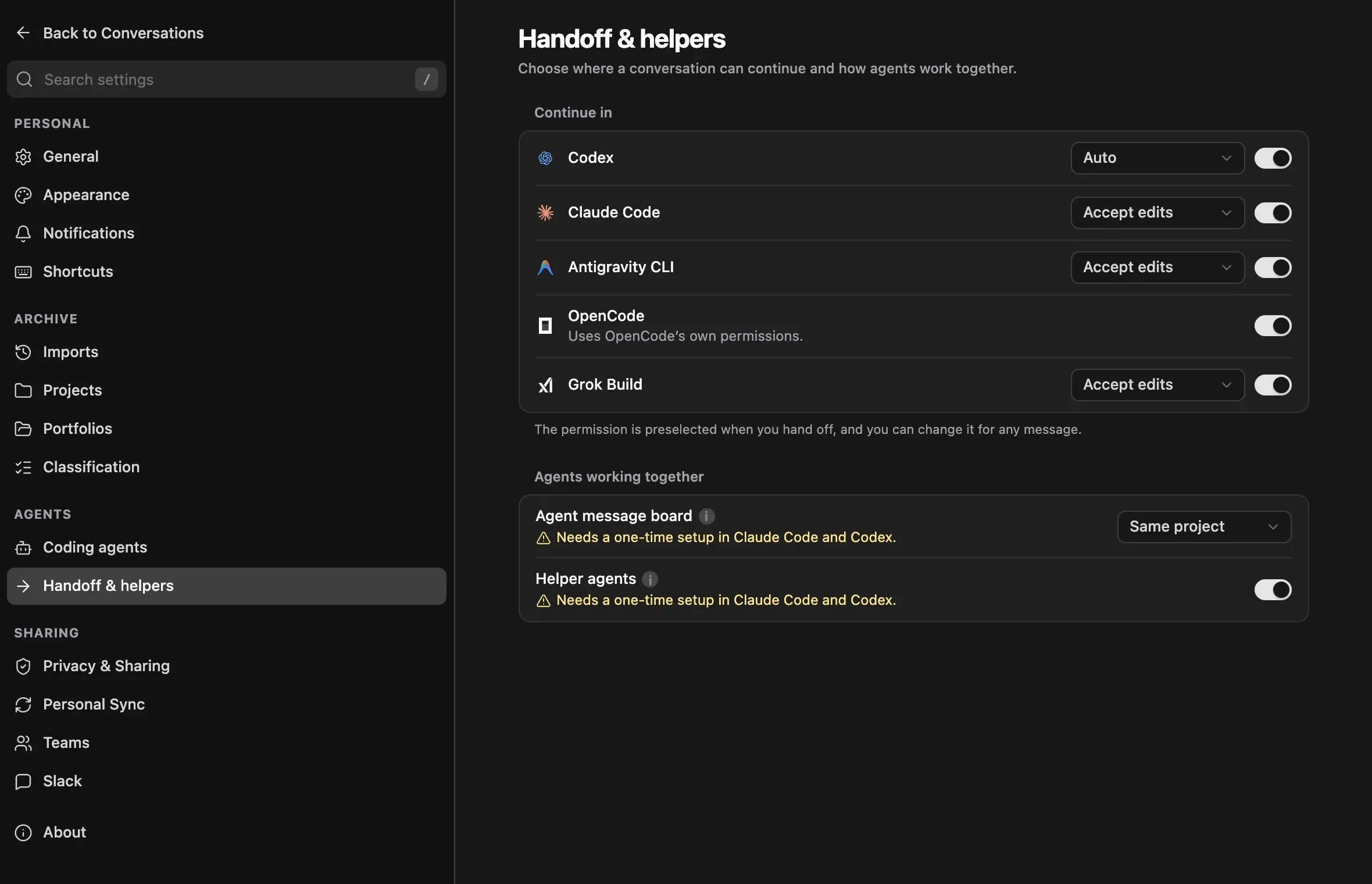
- Harnesses installed on this computer come first, each with a switch that chooses whether it appears in Continue in… for handoffs and new conversations. Hansard offers every installed harness unless you turn it off here, including harnesses installed after setup. Supported harnesses that are not installed are listed under the disclosure below them.
- The menu beside the switch sets the permission mode the harness starts with, such as Accept edits. Harnesses without a permission menu use their own permissions. You can still change the mode for each turn.
The same settings are available from the CLI:
hansard config set orchestrate.handoffProviders codex,claude_code,antigravity_clihansard config set orchestrate.disabledHandoffProviders amp,clinehansard config set orchestrate.codexSandboxMode workspace-writehansard config set orchestrate.claudePermissionMode plan| Setting | Values | Default |
|---|---|---|
orchestrate.handoffProviders |
codex, claude_code, antigravity_cli, opencode, grok, devin, cursor, amp, augment, copilot, moonshot, kiro, cline, mistral |
Every supported harness; only installed harnesses appear |
orchestrate.disabledHandoffProviders |
Any of the harnesses above | None |
orchestrate.codexSandboxMode |
read-only, workspace-write, danger-full-access, cli |
cli |
orchestrate.claudePermissionMode |
default, plan, acceptEdits, auto, bypassPermissions, cli |
cli |
orchestrate.grokPermissionMode |
default, plan, acceptEdits, auto, bypassPermissions, cli |
cli |
orchestrate.antigravityPermissionMode |
request-review, plan, accept-edits, skip-permissions, cli |
cli |
The default cli keeps the harness’s own permission configuration, including project and
managed settings.
Common questions
Section titled “Common questions”Does the new agent get the whole transcript?
Section titled “Does the new agent get the whole transcript?”No. It receives a summary of up to 24 KB: the goal from the first messages,
the latest 20 messages, key decisions, edited files, and frequent commands. The
summary includes the command to read the full conversation,
hansard show <session-id> --json. See What carries over.
Can I resume a Claude Code or Codex conversation with its full history?
Section titled “Can I resume a Claude Code or Codex conversation with its full history?”Yes. Continue here in the composer resumes the conversation in its own harness with its full history, and Fork in Codex or Fork in Claude Code branches it into a new conversation. See Resume or fork in the same harness.
What happens when an agent hits its usage limit?
Section titled “What happens when an agent hits its usage limit?”A turn started from the app shows Continue, which resumes the same conversation once the limit resets. With automatic account switching, Hansard can continue on another account for you. See Continue after a usage limit.
Troubleshooting
Section titled “Troubleshooting”The composer says a harness’s CLI is not installed. Install that harness’s CLI, then reopen the conversation.
A harness is missing from the Continue in… list. Check its installation status and switch under Settings → Handoff & helpers → Continue in. The executable must be installed on the selected device; archived history and terminal wrapper scripts alone do not count. Hansard records the harnesses you turn off, so a newly supported harness appears once it is installed.
The composer says the archived working directory is unavailable. The
original folder was moved or deleted. Restore it, or open an agent in the new
location and use /continue-from.
The composer is missing or read-only. A server started with --read-only
or reached from another machine cannot start agents. Open the app on the
machine that holds the archive.
A received conversation cannot be resumed. Conversations from other devices are read-only. Use Continue here with a local project instead.
Existing installations retain explicit Hansard permission overrides. Set each permission setting above to cli to inherit the agent’s configuration.