Accounts and plan usage
The Accounts view keeps your agent CLI and browser accounts in one place, records how much of each plan’s limits you have used, and can pick an account for each new session or request. Plan usage comes from what each provider reports. It is separate from the estimated API spend in Stats.
- App
- Accounts
- CLI
hansard account
Manage accounts in the app
Section titled “Manage accounts in the app”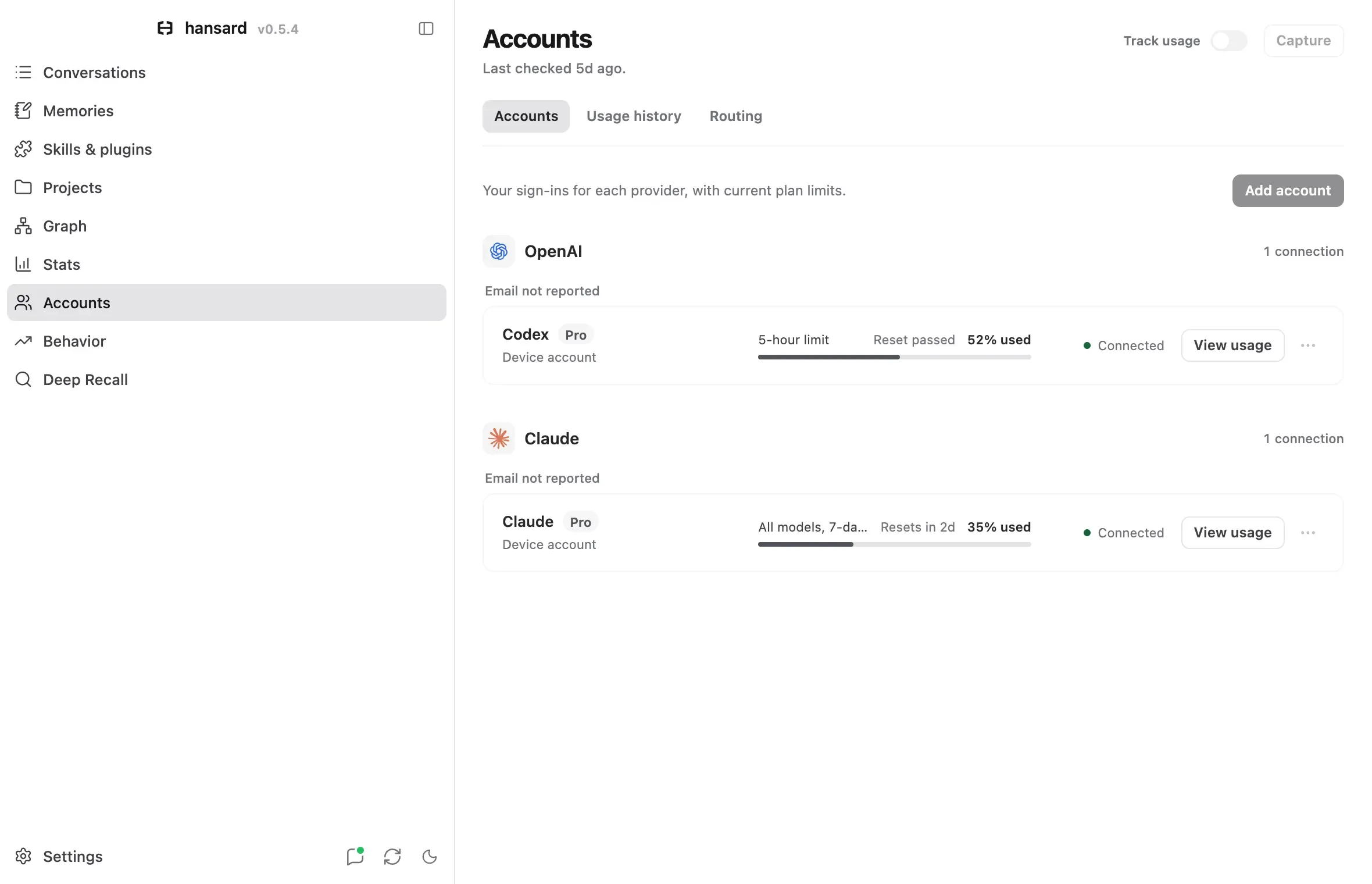
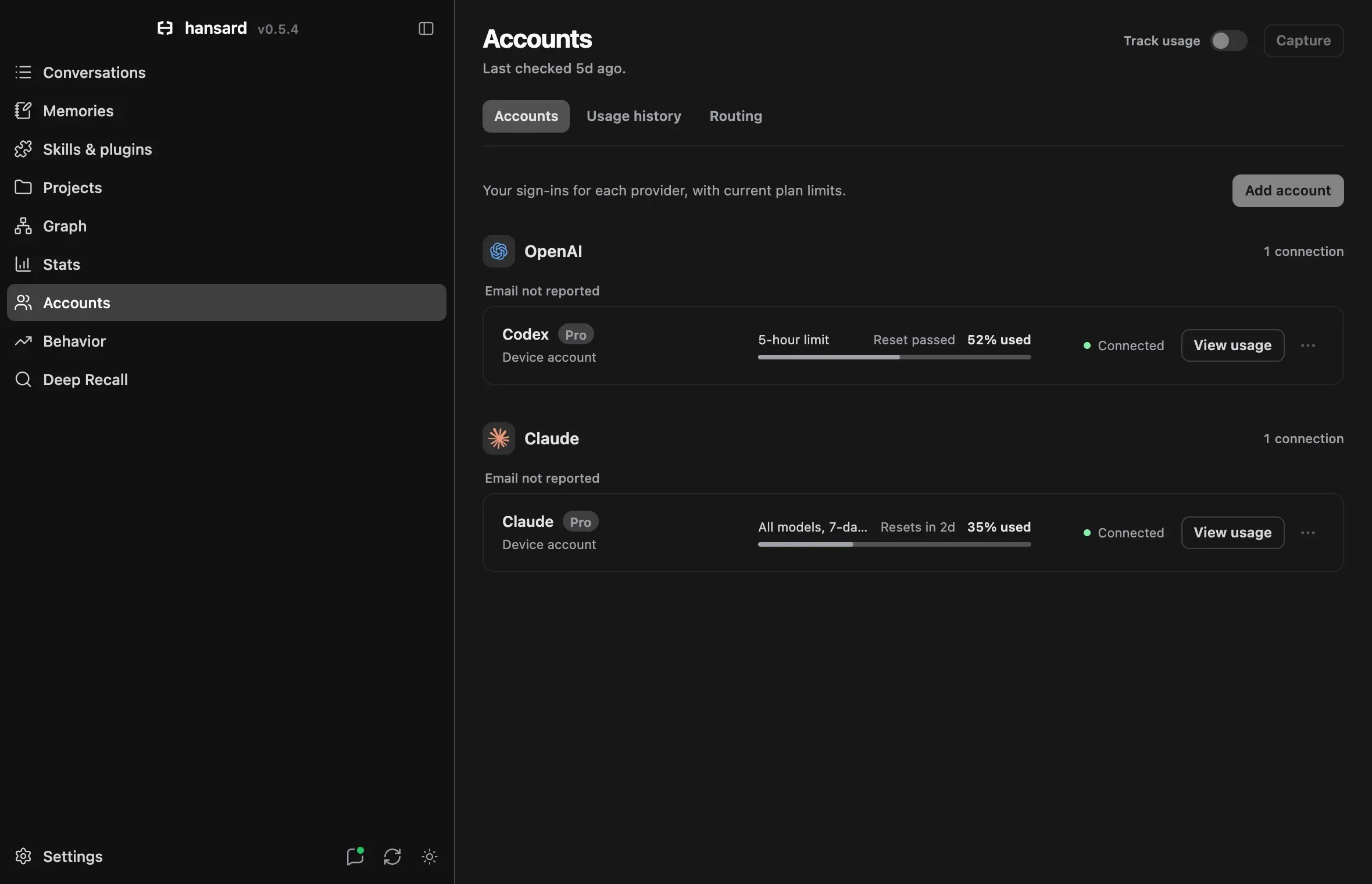
- Select Accounts in the dock. The Accounts tab groups saved and detected accounts by provider, then by email.
- To add an account, select Add account and choose a service.
- Enter an Account name and sign in:
- For Codex and Claude Code, Sign in and connect starts the local router and opens provider authorization in your browser. Sign in once, then choose the routing mode and select Enable or Save. The account is already connected, so routing does not require another login. Existing routing rules and selections are retained. Restart the coding tool after enabling.
- For isolated Codex or Claude Code settings and conversation storage, choose Advanced > Use a separate CLI profile. Native profiles have their own sign-in, separate from the router.
- For native profiles, Grok Build, Devin, and the Cursor CLI, sign-in opens the official flow in Terminal on macOS. Other platforms show the command to run. When sign-in finishes, Hansard checks the account and shows the email, plan, and workspace the provider reported.
- For ChatGPT, Claude.ai, Cursor, Devin, and Grok on the web, Hansard opens a separate Chrome or Edge profile. Sign in once in that window.
- For Antigravity, register the device’s existing sign-in.
- Each account row shows its plan limits as meters with the time until each
limit resets. Select the row to open the account’s limits and history in
Usage history. A row that needs a next step shows a button for it, and
the More actions menu beside it holds the rest:
- Sign in or Fix sign-in appears first when the account needs it.
- Open ChatGPT, Open Claude.ai, and similar buttons open a browser account.
- New session opens the CLI in Terminal with that account.
- Check connection checks the sign-in and usage now.
- Manage renames the account, pauses it, signs in again, or removes it.
Keep the sign-in dialog open until the account appears. If authorization has finished and the router is busy updating accounts, Hansard retries the connection without another sign-in. A failed authorization identifies the stage when the router reports it, such as a callback timeout or an unsuccessful code exchange.
To pause a native account, clear Include in capture and routing in Manage. A paused account is left out of automatic capture, routing, and new launches. Remove account removes it from the list but keeps its provider login files and usage history. Router accounts use Include in routing; removing a router account removes that router login.
Each row shows the plan the provider reports, or Plan unknown. Workspace identifiers are under Workspace, and Manage shows the full identity and connection details. Custom account names never replace the provider’s email, username, or team.
Manage accounts from the CLI
Section titled “Manage accounts from the CLI”hansard account add personal --provider codexhansard account login personalhansard account add work --provider claude --home ~/.claude-workhansard account capturehansard account run personaladdcreates an isolated profile forcodex,claude,grok,devin, orcursor. With--home, it registers an existing profile folder instead. Each profile has its own provider settings, skills, and conversation history. A Cursor CLI profile keeps its login in the CLI’s file credential store inside the profile; on macOS the profile is also the session’sHOME, so shell startup files and git configuration come from the profile.loginruns the provider’s official sign-in. Hansard never copies login tokens.runstarts a new CLI process with that account. Pass provider arguments after--, for examplehansard account run personal -- exec "Explain the test layout". Running apps and sessions keep their accounts.capturechecks usage for every enabled account, or for one account when you name it.list,rename,enable,disable, andremovemanage saved accounts.removekeeps credentials and archived history.
For ChatGPT and Claude.ai, save browser profiles and open them from the CLI:
hansard account add chat-personal --provider chatgpthansard account add claude-work --provider claude-web --browser edgehansard account open chat-personalBrowser providers are chatgpt, claude-web, cursor-web, devin-web, and
grok-web. --home registers an existing browser user data folder, and
--browser-profile "Profile 1" selects a profile inside it.
Hansard imports and watches the history of every registered profile, including
paused ones. Removing an account stops that discovery and keeps what is already
archived. Profiles that Hansard creates live in Hansard’s home folder:
hansard update keeps them, but hansard reset and uninstalling without
--keep-data delete them, including their credentials and history. Move a
profile outside Hansard’s home folder first to keep it.
Run hansard help account for every subcommand and flag.
Track plan usage
Section titled “Track plan usage”- In Accounts, select Capture to check every enabled account now.
- To keep checking, turn on Track usage. The watcher then samples plan limits every 15 minutes while it runs and your Mac is awake. The header shows when the last capture finished.
- Select an account, or open the Usage history tab.
Usage history lists accounts in the same order and groups as the session browser. Each account shows its current limits, each with a chart of the usage captured over up to 30 days and its reset times. Depending on the provider, it can also show Spending, Share of usage this week by product, Activity, Daily tokens, Longest turn, and a Plan section with plan details, spend control, extra credits, Resets available, and each reset grant. Accounts you no longer use stay listed with their history.
Under Current limits, each limit with recent captures shows where its pace leads: At this pace, lasts until it resets, or At this pace, runs out around a named time. The pace extends the provider’s own reported percentages over the last 90 minutes for short limits and up to a day for weekly ones. Codex, Claude Code, and Grok Build accounts also list the sessions that spent that provider’s use over its shortest limit, ranked by their recorded tokens at API prices. When every account of a provider on this device is at a limit, or reaches one within two hours at its current pace, an alert at the top of the window names when it runs out. It shows once for running out and once for reaching the limit, until the provider’s first limit resets.
To turn tracking on or off from the CLI:
hansard config setup --track-usagehansard config setup --no-track-usageHow capture works:
- Up to four accounts are checked at once. Capturing usage never sends a model prompt and never redeems a reset.
- Codex and Claude checks use the account’s saved sign-in for read-only usage requests. If the saved sign-in cannot be used, the official client handles the check.
- Each provider membership keeps its own history. Several profiles for the same membership share one history.
- A failed check keeps the last successful values and their original time.
- Hansard keeps up to 32 saved connections and 64 usage accounts.
- Providers whose CLI is not installed are skipped without errors, and their saved accounts stay visible. On macOS, Codex capture also finds the CLI bundled with Codex.app or ChatGPT.app.
- Hansard cannot fill in time it did not observe. A blank stretch after sleep, or while the watcher was off, means no data, not zero use.
What each provider reports:
- The Codex usage read covers only the active ChatGPT workspace. If one login has personal and business workspaces, select each workspace in Codex and capture it once. Claude organizations and Devin and Grok Build team workspaces work the same way.
- Claude reports model-specific limits, usage-credit spending and caps, subscription and seat details, reset eligibility, and weekly usage by product.
- Codex reports reset allowances and expiry, credit controls, daily token totals, the longest turn, lifetime and peak daily tokens, and streaks. For a Team, Business, Edu, or Enterprise workspace it also reports the workspace name and your role, from the workspace list the Codex CLI checks before each turn.
- Antigravity reports the Google AI plan its CLI shows beside the signed-in account. Grok Build reports the subscription tier its CLI keeps for the signed-in account. When either is missing, the plan shows as unknown.
- Cursor reports the plan, the share of the billing period’s included usage
used, in total and for its Auto and API pools, and the on-demand spending
cap, as the Cursor CLI’s
/usagepanel shows them. Enterprise members report their personal spend for the billing period instead. Hansard reads them with the Cursor CLI’s saved sign-in and the Cursor app’s sign-in on this device; when both are the same Cursor user, they show as one account. A Cursor browser profile is a separate sign-in whose plan Hansard cannot read. - Resets available counts provider-granted resets, including zero. Claude separates remaining grants from resets usable now. An account that is not eligible lists quota resets as Unavailable; an unreachable endpoint never shows as zero. Provider-granted resets, scheduled window resets, and the completed cycles Hansard observes are tracked separately.
Claude Code reports usage-credit spending for Pro, Max, Team, and Enterprise
accounts when its /usage output includes it. Team and Enterprise figures
describe your own membership, not the organization budget. Team member rows
need Claude Code 2.1.236 or newer. Spending keeps zero, unlimited,
disabled, and unreported limits distinct; a missing row does not mean zero.
Organization owners can see shared usage-credit budgets in Claude’s
organization usage settings. The estimated spend in Stats is not billing spend
and never appears here.
Provider commands report different scopes:
| Command | Shows | Scope |
|---|---|---|
Claude /usage (aliases /cost, /stats) |
Live limits and spending, plus local activity | Limits are account-wide; activity is this machine only |
Claude /usage-credits |
Billing settings, or a request to an administrator | Account or organization action |
Claude /status, /context |
Sign-in, configuration, and current context use | The current CLI process and conversation |
Codex /usage daily|weekly|cumulative |
Token activity from the account service | The signed-in account |
Codex /status |
Session configuration and token use | The current conversation |
Claude’s skill, subagent, plugin, MCP, loop, and cache breakdowns come from local sessions, so Hansard does not assign them to whichever account happens to be signed in. Organization-wide analytics need a separate reporting connection. See Anthropic’s command reference, usage and cost guide, and limit resets, and OpenAI’s account usage protocol.
Account records, provider profiles, and routing choices stay on this device. With Personal Sync, your captured usage history also appears on your other devices.
Connect usage APIs
Section titled “Connect usage APIs”Read-only usage APIs add Cursor team spending, Claude Enterprise member caps, Factory credits, and GitHub Copilot billing.
- In Accounts, select Add account, then Connect a usage API.
- Select the provider, enter the account selector and an API key with read access, and select Connect and check usage.
- To rename the connection, replace its key, or disconnect it, select Manage on its card. Earlier usage history stays available.
Hansard saves keys entered here in private local files, outside the archive and sync. Cursor personal usage comes from the Cursor CLI and app sign-ins on this device; the usage APIs add team and organization figures.
To configure connections in a file instead, add usage.connections to the
file printed by hansard config path:
{ "usage": { "connections": [ { "id": "cursor-workspace", "type": "cursor-member", "label": "Example workspace", "email": "user@example.com", "tokenFile": "~/.config/hansard/secrets/cursor-readonly" } ] }}Merge this with your existing configuration, then select Capture. Each
entry needs a stable, unique id, a type, and either tokenFile (a file that
contains only the key, readable by your user) or tokenEnv (the name of an
environment variable available to the app and the watcher). label sets a
custom name. Keep the same id across devices and key rotations. Up to ten API
connections are checked alongside the installed CLIs.
| Type | Account selector | Access needed and what it captures |
|---|---|---|
cursor-member |
email |
Team Admin API key. On-demand spend and the member’s enforced cap. |
cursor-organization |
organizationId |
Organization API key. Contract pool used and limit. |
claude-enterprise |
userId |
Enterprise key with read:spend_limits. The member’s cap and spend. |
factory-member |
None | Enterprise Analytics enabled. Members can read their own credits. |
factory-organization |
None | Analytics access with the Manager or Owner role. Organization credits. |
copilot-user |
username |
GitHub token with Plan read permission. AI credits and billable usage. |
copilot-organization |
organization, optional budgetId |
GitHub token with Administration read permission. Usage and the organization’s AI-credit hard budget. |
Factory reports credits, not dollars, through yesterday UTC; on the first of the month it shows the previous month. Copilot caps appear only when the selected budget is a hard AI-credit budget for the organization. The public Cursor APIs cover teams and organizations; individual subscriptions report through the Cursor sign-ins on this device instead. A missing permission appears as a notice and never overwrites saved values with zeros. See the provider documentation: Cursor Team API, Cursor Organization API, Claude Enterprise API, Factory Analytics, GitHub usage, and GitHub budgets.
Choose an account for each new session
Section titled “Choose an account for each new session”An account pool picks a Codex, Claude Code, Grok Build, or Devin account each time you start a CLI session. It balances session starts, not token volume.
- Open the Routing tab. Under Session launch rules, select Create pool.
- Enter a Pool name, choose the Service, and choose a Selection policy: Use in order, Spread new sessions, or Most quota remaining.
- Select the accounts and move them up or down to set their order.
- Optional: under Quota rules, set how much quota to keep in reserve and how old a usage check can be.
- Select Save pool. To start a session, select New session on the pool.
From the CLI:
hansard account pool set coding personal backup --policy ordered --reserve 5hansard account default codinghansard account run --provider codex --binding feature-workhansard account select --pool coding --jsonordereduses the first eligible account in the list.round-robinspreads new sessions across eligible accounts.most-remainingprefers the account with the most quota left in its tightest limit window.- Paused, failed, stale, unverified, and exhausted accounts are skipped. Unknown
quota never counts as available.
--reservedefaults to 0%, and--max-agedefaults to 20 minutes. - A Codex account whose included limits are used up keeps working on its credit
balance. Pools and the router skip it until you turn on Use credits when
limits run out in its Connections dialog, or run
hansard account credits <account> on. It is then used after every account with included usage left. - Launching from a pool checks usage first.
selectpreviews the choice without checking usage or advancing the rotation. defaultsets the pool for a folder and its subfolders; the closest folder wins.--globalsets a fallback.--bindingnames a session so that resuming it uses the same account. If that account becomes unavailable or changes identity, the launch stops instead of switching. Pass the harness’s resume arguments after--. Resuming through a pool requires a binding.forget-bindingreleases a name.- Naming an account directly, as in
hansard account run personal, skips the pool’s quota rules. hansard account routingshows pools, defaults, bindings, and the last 200 launch decisions.
A running session keeps its account until it ends. Hansard never moves a running session to another account or replays its requests.
Switch accounts automatically at usage limits
Section titled “Switch accounts automatically at usage limits”Automatic account switching runs a local router that sends each Codex or Claude Code request to one of your accounts and moves to another when a limit is reached.
- Open the Routing tab. Automatic account switching lists Codex and Claude Code, each with its state and the account it would use next.
- Select Enable beside the tool.
- Under How to use your accounts, choose:
- In order switches when the current account runs out.
- Spread shares requests across your accounts.
- Rules ranks accounts by rules you order.
- Under Accounts, select the accounts to use. For In order and Spread, set their order by dragging or with the arrow buttons. Under Rules, accounts appear in their order right now, and Edit tie-break order sets the order used for ties and unknown usage. To sign in another account, select Connect account or Connect another account.
- Select Enable. Hansard installs and starts the router and configures the tool.
- Restart the tool, then keep using
codexorclaudeas usual.
The router must stay running while switching is on. After a restart, logout, or crash, the watcher starts it again unless it was last stopped with Stop under Local router. Each tool keeps its own mode and account list. To change them, select Manage. To stop switching and restore the tool’s previous configuration, select Turn off, then restart the tool.
Rules uses the first rule that has an available account. The rules are Five-hour accounts, Nearest weekly reset, Most allowance remaining, Most usage used, and Your account order. Drag rules to reorder them, add one from Add a rule, and choose the final tie breaker in Break ties with. The default uses five-hour accounts first, then the nearest weekly reset, then the most allowance remaining. Allowance compares percentages, not absolute capacity across different plans. Rules and Spread turn off sticky conversations so that each request follows the current order.
Each row in Accounts shows Next, its place in line, or the reason it is excluded, with its 5-hour and weekly usage and when that usage was checked. It updates as you change the setup.
To write a rule in your own words, select Describe a rule, type your preference, choose an installed Codex or Claude agent in Draft with, and select Draft rule. The agent sees only your typed preference, not your accounts or credentials, and its output is never run as code. If the draft needs a condition the rules cannot express, Hansard lists it and does not apply the draft. Select Use this rule to load it into the preview, then save.
While the router runs, it refreshes rule priorities every minute and reads each routed account’s usage about every two minutes, one request to the provider per account. After a rate limit, that account’s next read waits 5 minutes, doubling up to one hour. Accounts whose usage is older than three minutes, whose check failed, or whose reported reset has passed fall back to their saved order after accounts with known availability. When no account has current usage, the order on the Routing tab reads Using your saved order until usage is checked again. An exhausted account stays skipped until a later check or its reported reset shows it is available. Limits for a single model do not exclude the whole account.
The router keeps an account it rejected with no retry scheduled, such as after the provider refused a login the router cannot renew, unavailable until that account changes. When a usage check through that same account succeeds and shows allowance remaining, Hansard re-enables it for every model. If the provider rejects it again, the next attempt waits 5 minutes, doubling up to one hour, until the account serves a request.
Saved Codex ChatGPT logins stored as files can join without another sign-in: Codex keeps renewing its own login, and the router receives only the current access token. Claude needs a separate one-time router sign-in so that its router and native logins renew independently. Native refresh tokens are never copied into the router.
Below the tools, the Routing tab lists each routed tool’s accounts in their current order, with 5-hour and weekly usage, the same state the Accounts tab shows for that login, and when its usage was checked. Capture at the top of the page refreshes router account usage with every other account’s. The 15-minute usage sample also updates it, including accounts a rule holds out of routing, and applies the rules again, so usage stays current in every mode. A limit whose reset has passed shows as unknown until the next check. Starting the router turns on usage tracking when no Track usage setting has been saved.
When a tool is set to use the router but the router is stopped, its row reads Router stopped, because new sessions of that tool cannot connect until the router starts. Router settings on an account of a tool with automatic switching changes whether that tool uses the account; the switching setup sets its priority and weight.
Local router holds the router’s server controls: Restart, Stop, and a menu with the items below. When an update changes the router’s background process, it asks for a restart; the watcher restarts the router after ten minutes without requests.
- Routing settings sets round robin, weighted, or priority-first selection, sticky conversations, and retry limits. Higher priority wins first; weights balance requests within one priority.
- Refresh accounts reloads router account status, and Check for update installs a newer router release.
- Connect another provider signs in router accounts for Antigravity, Devin, Grok, Kimi, Kimi.ai, and Meta, as Sign in through the router does under Add account. If the callback port is busy, paste the callback manually; device-code providers show the code to enter.
Local router lists a tool only when its configuration needs attention, such as a changed default profile, with Restore previous settings when a backup exists. To restore a configured tool, select Manage, then Turn off.
Router accounts also appear in the Accounts tab. Matching native and router memberships share one account row; Connections lists each login with its state and controls. Equal emails with different workspaces remain separate. Normal usage capture includes enabled Codex and Claude router accounts in the same history as native logins. Unidentified captures remain under Unassigned captures in Usage history, without creating another connected account. Existing logins need no reset or reimport for this grouping.
Sign-in needed means the provider rejected the saved login. In Connections, select Sign in again for a router login or Sign in for a CLI profile. Reconnecting verifies the same account and workspace and keeps its routing selections and settings. A detected device login offers Sign in on this device.
Usage unavailable means usage could not be checked; it does not establish that the login expired. Usage check paused means the provider limited usage requests. Connections shows the same issue as the account row, explains its cause, and names the next check time when one is scheduled. Retry usage check checks that router account. Manual and automatic checks respect the provider’s retry delay, and previously captured usage keeps its original time.
Capture checks their quotas with the rest of your usage, up to four at a time; Meta has no quota reader. Manage renames or pauses a router account or edits its priority and weight; under automatic switching, pausing removes it from that tool’s selection. Removing a router account deletes its router sign-in.
The router is an official, checksum-verified CLIProxyAPI release that listens
only on this machine. Its credentials stay in a private folder outside the
archive and sync, and it keeps running when the app restarts or updates. Stop
the router before installing a router update. hansard reset and uninstalling
stop the router and restore the tool configuration first; --keep-data keeps
the router and its credentials.
Codex keeps its native ChatGPT sign-in for plugins and connected apps while model
requests use the router’s separate credentials. Router account changes do not
switch plugin accounts. To refresh an older Codex routing configuration, run
hansard account proxy client configure codex and restart Codex.
Routing shows Codex app account separately from Model accounts. The app account supplies the workspace, plugins, and connected apps; model accounts supply the router’s model capacity. Hansard detects the current app sign-in and reports missing or changed sign-in details. Check account reads it again; Change account explains how to sign in through Codex. Reordering model accounts does not change the app account. A failed check keeps the last-known identity visible without treating it as a current successful check.
Configured routing applies to new default sessions after restarting Codex. It does not verify which route an already-open conversation is using.
Claude Code works differently. The router signs Claude Code in with a router token, and Claude Code loads your claude.ai connectors, such as Gmail or Google Drive, only when it is signed in with a claude.ai subscription. While switching is on, Claude Code in the terminal, in IDEs, and through the Agent SDK does not load those connectors. Local plugin and MCP configuration remains intact. The Claude desktop app delivers connectors separately. To use synced connectors in Claude Code again, select Turn off and restart Claude Code, or use a separate native profile without router settings.
The same controls are available from the CLI:
hansard account proxy installhansard account proxy starthansard account proxy statushansard account proxy capturehansard account proxy client configure codexhansard account proxy client restore codexComplete provider sign-in in the app, which handles the sign-in callback.
Continue after a usage limit
Section titled “Continue after a usage limit”If a usage limit interrupts a Codex or Claude Code turn, send Continue in the
same conversation. For a conversation running in Hansard, a Continue button
appears on a recognized limit failure and stays after a page reload. It sends a
new turn with the saved conversation, model, effort, and permission settings.
Completed work stays in place, and the failed prompt is not sent again. Queued
messages wait until the continued turn succeeds.
To continue automatically, turn on Auto-continue after a usage limit in the Routing tab, or run:
hansard config set orchestrate.autoContinueOnLimit trueIt is off by default and needs the router running and configured for that
tool. After two automatic continuations in a row fail, the conversation stops
and shows the Continue button. The setting applies to the next failure
without a restart. It does not affect conversations you run in a terminal;
those still need a manual Continue.
The router switches to another eligible account for the same provider and
model before any output starts. If every account is exhausted, the turn stops
until quota is available again. Claude can report a limit inside a response that has
already started; in that case Continue may try the same account once more,
and the next rejection triggers the switch.
Connect an external router
Section titled “Connect an external router”To use a CLIProxyAPI server you already run, open the Routing tab and, under External routers, select Connect router. Enter a Name, the Local endpoint, and the Management key environment variable, then select Connect. Enter the variable’s name, not the key itself.
From the CLI, set ROUTER_MANAGEMENT_KEY to the server’s management key, then
run:
hansard account router add local --url http://127.0.0.1:8317 --key-env ROUTER_MANAGEMENT_KEYhansard account router status localhansard account router strategy local round-robinHansard saves only the variable name, checks the server’s management interface,
and confirms strategy changes by reading them back. Strategies are
round-robin, weighted-round-robin, and fill-first, and each applies to the
whole router. Manage logins, priorities, weights, and sticky sessions in that
router. Router request counts are not plan quotas, and account pools are not
copied into the router.
How Hansard identifies accounts
Section titled “How Hansard identifies accounts”An account in Hansard has four separate parts: the saved connection, the provider identity, the selected workspace, and the reported plan. Two accounts with different names can share one subscription, and one email address can belong to both a personal and a work membership.
After a native sign-in, Hansard checks the account’s identity. If it matches a membership another saved account already uses, the new account is marked Duplicate workspace and left out of launches and pools:
- Use existing opens the original account.
- Fix sign-in starts sign-in again so you can choose a different workspace.
- Removing the duplicate keeps its provider files.
The original is the earliest registered account. Pausing it does not pass ownership to a duplicate, and a session bound to an account never switches automatically. Matching uses the provider’s membership identifiers, never names, email addresses, or plan labels, so the same email with different verified workspaces is allowed. An identity Hansard cannot resolve is shown as unverified. A failed usage check keeps an earlier duplicate match until a different identity is observed.
Router sign-in can refresh a credential you already have rather than add a new account, and Hansard says when it does. For Codex, Claude, and Devin router accounts, Hansard checks identity after sign-in and pauses a confirmed duplicate, which cannot be re-enabled. Other router providers and browser profiles do not report a verifiable identity. Native accounts and router accounts run their own duplicate checks and never share credentials.
Plan badges use only the plan the provider reports. Hansard never infers a plan from an account name, email, router priority, or API connection label. Within an email group, larger reported plans sort first, and explicit multipliers such as Max 20x break ties. This order is a display convention, not a claim that plans have comparable quota.
Supported connection types
Section titled “Supported connection types”| Connection | What Hansard supports |
|---|---|
| Native subscription profiles | Official Codex, Claude Code, Grok Build, Devin, and Cursor CLI sign-in, isolated profiles, usage capture, launches, and pools. For Claude, Hansard selects the Claude subscription login. |
| Antigravity device account | The device’s official sign-in and operating system keyring, usage capture, and launch. It cannot join pools; use router sign-in for several Antigravity logins. |
| Browser profiles | Separate Chrome or Edge profiles for ChatGPT, Claude.ai, Cursor, Devin, and Grok. Sign-in stays in the browser, cookies stay in the browser’s store, and Hansard cannot verify the membership, read web-chat limits, or route web requests. ChatGPT web limits are separate from Codex plan limits. |
| Usage APIs | Cursor, Factory, GitHub Copilot, and Claude Enterprise reporting credentials. They read usage only and do not sign in to apps or route requests. |
| Managed router | Saved Codex ChatGPT logins, or separate router sign-in for Codex and Claude, plus Antigravity, Devin, Grok, Kimi, Kimi.ai, and Meta. Router support for a provider does not mean that provider allows every third-party use of a subscription. |
Hansard has no general selector for sign-in methods. API keys, service accounts, federated identities, and cloud credentials are configured in each provider’s own tools. A subscription plan does not include API credit or permission to use every client a provider offers.
Provider sign-in methods and plans
Section titled “Provider sign-in methods and plans”This table summarizes the sign-in methods and plans that each provider shown in Accounts documents. Availability depends on region, workspace policy, and client version, and providers change these often; follow the links for current details. Social login and enterprise SSO happen inside the provider’s own browser flow.
| Provider | Documented sign-in methods | Plans and billing |
|---|---|---|
| OpenAI and Codex | ChatGPT browser sign-in, device authorization, API-key login, enterprise access tokens, and workload identity federation. Browser sign-in supports social accounts, SSO, or email. Custom API providers have separate credentials. Authentication, enterprise tokens, federation. | Free, Go, Plus, Pro 5x and 20x, Business (formerly Team), Edu, and Enterprise, all separate from metered API billing. A generic pro response does not say which multiplier applies. Plans. |
| Claude | Claude subscription sign-in; Console sign-in or API keys; bearer tokens and credential helpers; Anthropic profiles and workload federation; Bedrock, Google Cloud, Foundry, and Claude Platform on AWS. Enterprise browser sign-in can use SSO. Code authentication, browser login. | Free web access, Pro, Max 5x and 20x, Team Standard and Premium, and Enterprise with usage or seat billing. Organization and member spending caps are separate from short-window limits. Plans, work memberships. |
| Antigravity | Personal browser or keyring sign-in and headless authorization; Gemini API-key mode; enterprise SSO, Cloud project and location, Workforce Identity Federation, and Application Default Credentials. CLI, enterprise. | Individual access, Google AI Pro and Ultra, Gemini Enterprise Standard and Plus, and Cloud consumption, each with different entitlements and overage billing. Plans. |
| Cursor | Browser sign-in and SAML or OIDC SSO; user API keys, enterprise service accounts, and administration or analytics keys; bring-your-own provider keys, including cloud credentials. The Cursor CLI signs in through the same browser flow, and Hansard saves separate CLI profiles. API, SSO, service accounts, BYOK. | Hobby, regional Start, Pro, Pro+, Ultra, Teams Standard and Premium, and Enterprise. Model usage pools and bring-your-own-key billing differ. The cloud agent API is not a general chat endpoint. Pricing, usage. |
| Devin | Browser sign-in with manual token fallback, enterprise and legacy Windsurf enterprise sign-in, personal access tokens, and service-user API identities. Legacy API keys and runtime credentials are separate. CLI, enterprise, Windsurf, API. | Free, Pro, Max, Teams full and flex seats, and Enterprise. Daily and weekly limits, shared team credits, enterprise ACUs, and legacy Windsurf credits are not interchangeable. Self-serve billing, enterprise billing. |
| Grok | Browser OIDC, device codes, API keys, external credential commands, and enterprise OIDC; management keys and optional mTLS; Google Vertex and Microsoft Foundry credentials. Web sign-in supports social accounts or email. Build authentication, web login, management API, mTLS, Vertex, Foundry. | Free, SuperGrok Lite, SuperGrok, Plus, Heavy, Business, and Enterprise. Subscription allowances and extra credits differ from direct API billing. Plans. |
| Factory | Browser or device confirmation, magic links, enterprise SAML or OIDC, personal and service-account keys, and bring-your-own provider keys with headers or credential helpers, including AWS credentials. Identity, CLI, BYOK. | Pro, Plus, Max, Teams, Business, and Enterprise; Plus and Max have different usage multipliers. Factory identity is separate from bring-your-own-key billing. Plans. |
| GitHub Copilot | Browser or device sign-in, supported OAuth tokens, fine-grained personal access tokens with Copilot Requests, and GitHub CLI fallback; SDK server tokens; bring-your-own provider keys. Classic personal access tokens cannot run CLI inference. CLI authentication, server tokens, BYOK. | Free, Student, Pro, Pro+, Max, Business, and Enterprise. A usage-reporting token is separate from a credential that can run models. Plans. |
| Kimi | Official sign-in and Kimi Code membership API keys; separate mainland and overseas endpoints and metered Open Platform keys; compatible-provider credentials. KIMI_CODE_HOME supports separate native profiles, but Hansard manages Kimi through the router. Providers, data locations, membership. |
Go, Plus, Pro, Max, and Ultra; Go has no coding quota. Legacy Andante, Moderato, Allegretto, and Allegro memberships keep different limit rules. Devices and keys share one membership allowance. Membership guide. |
| Meta | Muse Code browser sign-in or API keys, and a separate bearer key for the Model API. Consumer Meta AI is a different account. Muse Code authentication, Model API authentication. | Muse Everyday, High, and Power tiers with different multipliers. Subscription credentials work only in Muse Code; extra API keys use metered Standard or Contributor billing with shared team limits. Subscriptions, API billing. |
| OpenCode | Provider keys, supported provider sign-in, cloud credential chains, Azure Entra, and custom compatible endpoints. Zen and Go use OpenCode-issued keys. Providers. | Zen is metered and Go is a subscription; other providers keep their own billing. Hansard records local activity but does not claim a verified OpenCode-wide quota. Zen, Go. |
Troubleshooting
Section titled “Troubleshooting”The usage chart has a blank stretch. Hansard captured nothing while your Mac slept or the watcher was stopped. That time cannot be filled in later. Turn on Track to keep sampling.
An account shows Duplicate workspace. It signed in to a workspace another saved account already uses. Select Use existing to open the original, or Fix sign-in to sign in to a different workspace.
Claude Code capture fails. Claude Code versions without the auth command
cannot be captured. Update Claude Code, then select Capture again.
A Codex capture shows the wrong workspace. Codex reports only its active workspace. Switch workspaces in Codex, then capture again.
Rule-based routing does not follow new usage after an upgrade. A router
that was already running keeps its old refresh behavior. Run
hansard account proxy restart.
Account buttons are disabled. A remote or read-only viewer cannot change connections or launch accounts. Open the app on the machine that runs Hansard.