Projects and coordinators
A project collects every conversation from one repository or folder, whatever harness you used. Open a project’s overview to see its recent and active work, and give the project a coordinator: a persistent Codex or Claude Code conversation that remembers the project’s goals and hands work to helper agents. Coordinators are available only in the app.
- App
- Sessions → project overview, Projects
- CLI
hansard stats --repo
Open a project in the app
Section titled “Open a project in the app”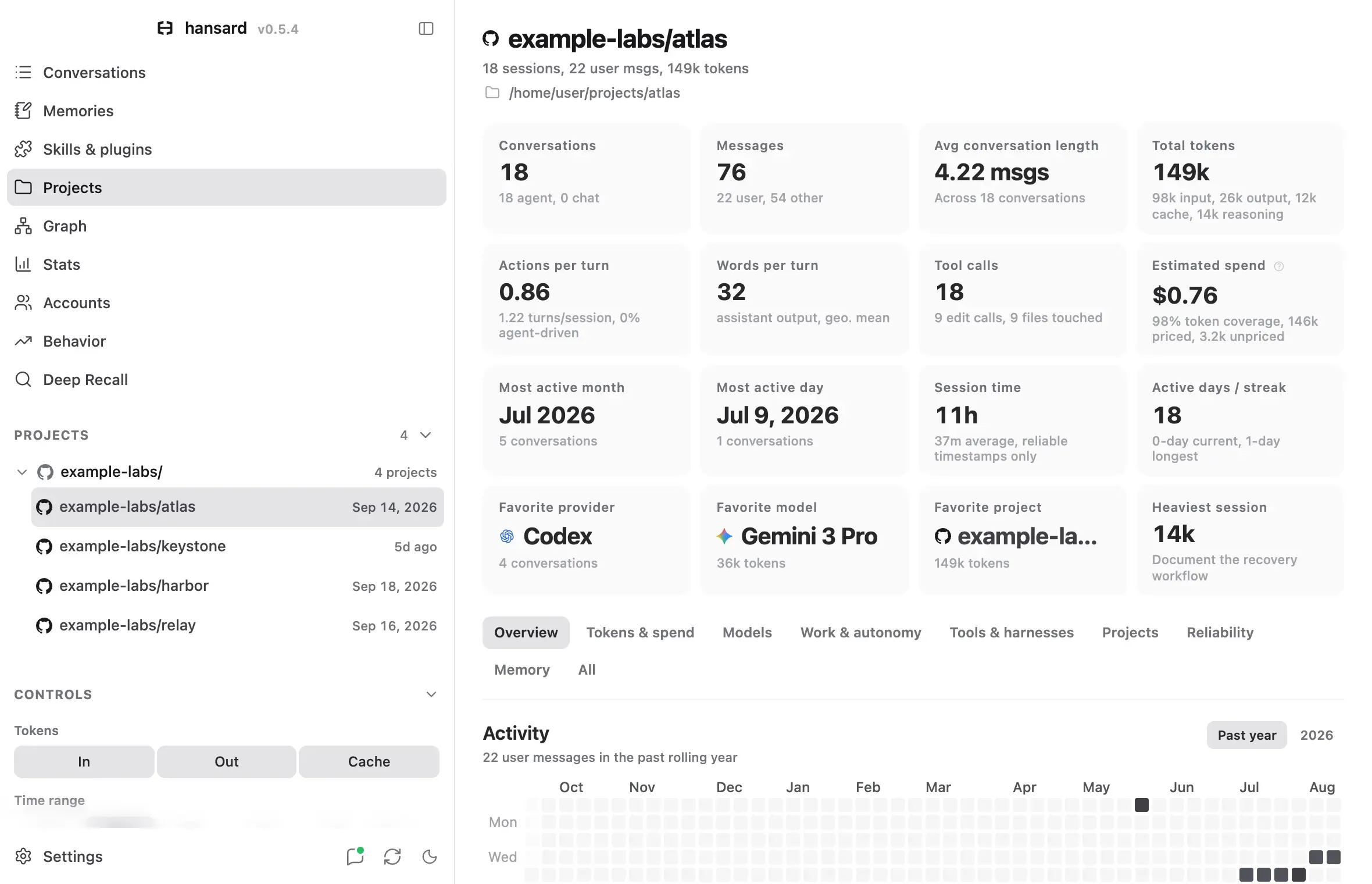
-
Select Sessions in the dock.
-
Select a project’s name. The project overview opens with the project’s folders, conversation count, last activity, and the harnesses you used there. Folders synced from your other devices show that device’s name before the path. In the app, the coordinator chat fills the main column and the conversation groups sit beside it. On a narrow window the groups move below the chat. Select Memories to see the memories saved for the project, or Board to open the project’s message board.
-
Review the conversation groups:
- Pinned lists conversations you pinned.
- Waiting on you lists runs that need your approval or reply, runs that failed or were interrupted, and sessions that reported they are blocked or need review.
- Working lists runs in progress.
- Resolved lists finished runs and sessions that reported they are done.
- Recent conversations lists the rest. Select Show more below the list to add the next conversations in place.
Each conversation appears in one group, so the group counts add up to the conversation count in the header. Runs whose conversation is not archived yet count too.
A conversation or run that edited files shows the lines those edits added and removed under its time, for example +120 −34. The counts add up the diffs on the conversation’s file edits. An edit that failed still shows its diff in the conversation but is not counted, and neither is a diff that a command only prints, such as
git diffoutput. For conversations archived before these counts existed, runhansard rebuild --since allonce to add them. -
To start a conversation in the project’s folder, select New conversation.
To open the conversation you last viewed instead of the overview, go to Settings → General, find When you open a project, and choose Last viewed conversation. A project without a viewed conversation still opens its overview.
Compare projects in the app
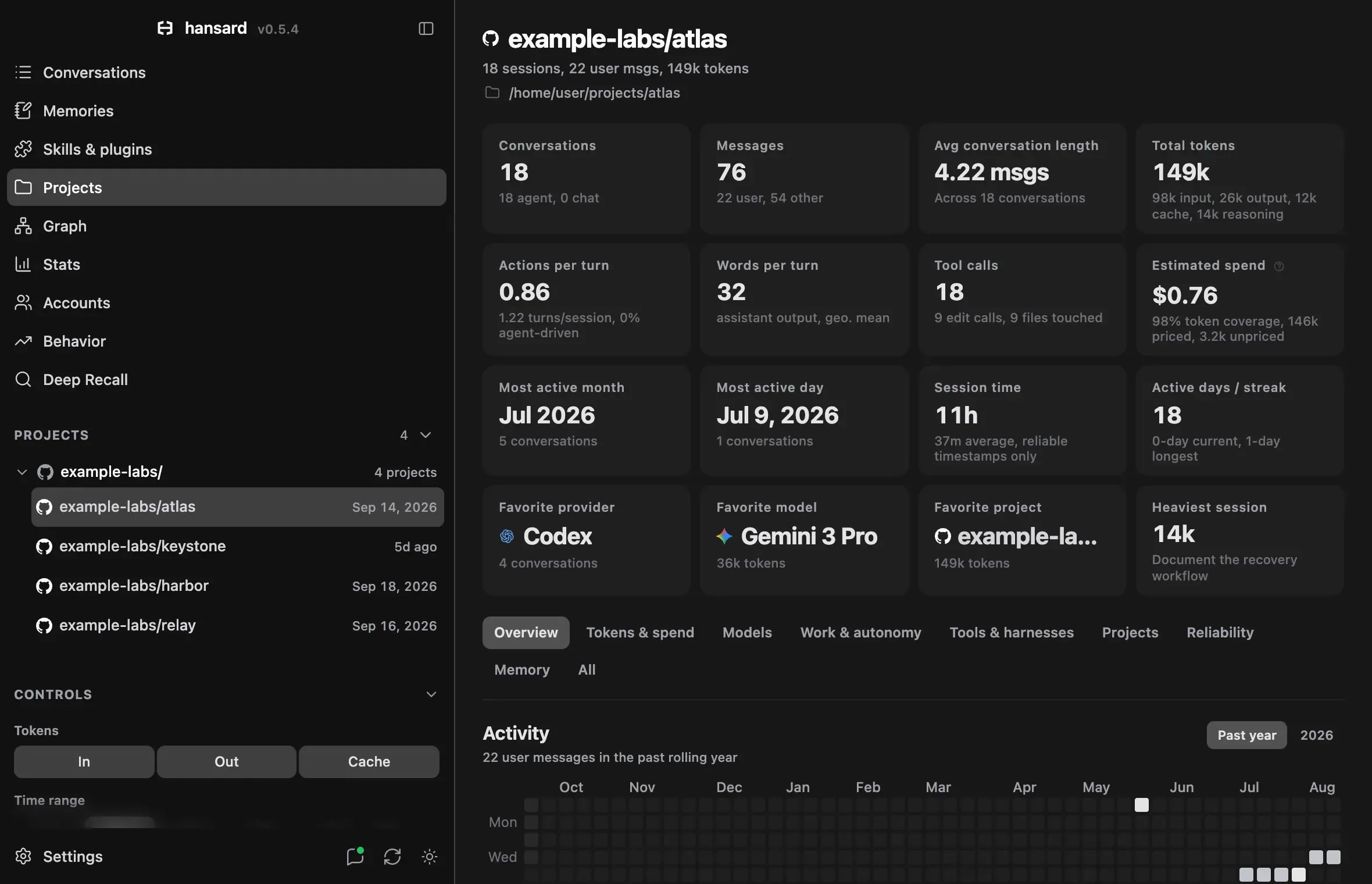
Section titled “Compare projects in the app”Select Projects in the dock to see statistics for one project at a time. The list shows each project’s conversations, user messages, tokens, and last activity. Select a project to load its charts, which match the Stats page scoped to that project.
To rename a project or combine several source folders into one project:
- In Projects, select the settings icon next to the project. Its tooltip reads Edit project.
- In Edit project, enter a Name and add or remove Source folders.
- Select Save.
Combining folders changes only how Hansard groups and names them. It never moves or deletes conversations. Remove project undoes the grouping. To manage all combined projects and path-based Rules in one place, open Settings → Projects.
Choose coordinator settings in the app
Section titled “Choose coordinator settings in the app”A coordinator is one long-running conversation per project. It keeps track of the project’s objective, accepted decisions, and unfinished work across turns and app restarts. Every project’s coordinator uses the same settings, so there is nothing to set up per project.
- Open Settings → Coordinator.
- Choose the Harness: Codex or Claude Code. A harness that is not installed on this device, or is turned off under Continue in in Settings → Handoff & helpers, cannot be selected.
- Choose the Model and Reasoning effort in the harness’s own names. Chosen by the harness uses the harness’s own setting and names the value it resolves to when it is known. To use a model the list does not include, choose Other model and enter its ID.
- For Codex, choose the Speed: Standard, Fast, or, when Codex offers it for the model and account, Ultrafast. Left unset, the coordinator follows Codex’s own setting.
- Set the Helper budget, from 1 to 100 with a default of 32.
Changes save as you make them and send nothing to a model. They apply from each project’s next message. Changing the Harness continues each coordinator’s work in a linked conversation in the new harness once its current conversation has been archived. A model or effort change waits for a running turn to finish.
The first message you send from a project overview creates that project’s coordinator. It runs in the project’s most recently active folder on this device. A project can also keep its own Project brief of up to 8,000 characters: goals, success criteria, priorities, and conventions. Edit it in Scratchpad at the top of the chat. The coordinator reads it when its conversation starts and whenever the brief changes.
A project whose folders are only on your other devices has no coordinator on this device. Its overview names the device to open Hansard on instead.
Work with the coordinator
Section titled “Work with the coordinator”- Type in the message box at the bottom of the coordinator chat, then press
Enteror select the send button. PressShift+Enterfor a new line. A new coordinator offers a few starting prompts; selecting one fills the message box without sending it. - Read the replies in the chat. The status next to Coordinator shows Ready, Working, Waiting on you, Paused, or Message not sent.
- When the coordinator is waiting on you, select Open waiting decision in the chat to approve a tool call or answer a question. Select Open conversation at the top of the chat to read the full conversation and steer it. When the coordinator’s own conversation edited files, the line below Coordinator also shows the lines those edits added and removed. Select the harness name in the message box to change the harness and model in Settings → Coordinator.
The chat shows the coordinator’s whole conversation, including the conversations it continued after a harness change. Threads it started appear in the chat where it started them. A very long conversation shows its most recent 400 messages and links to the full conversation.
Messages you send while the coordinator is busy wait in a queue and appear as Queued. Select Discard to remove a queued message before it is sent.
The coordinator can search memories and archived conversations from every harness and project, then read the relevant parts. It checks the current files before acting on what it finds.
Follow threads
Section titled “Follow threads”When helper launches are on, the coordinator hands substantial tasks to helper agents in the same project. Helpers can start their own helpers, so work forms a tree. Each helper’s work is a thread.
Threads appear above the conversation groups beside the chat, indented under the helper that started them. Each thread shows its status (Queued, Working, Done, Failed, or Stopped) and one line: its result once it has one, its task before that. A thread whose conversation edited files shows the lines those edits added and removed in that line, counted the same way as the overview’s rows. Select a thread to open its conversation, or its live run while it is working.
When a helper finishes, Hansard delivers its result to the helper or coordinator that started it, once, even across app restarts.
These limits apply:
- The Helper budget counts every helper the project has started, including finished ones. Raise it in Settings → Coordinator when the project needs more.
- The global helper limits in Helper agents also apply, including how deep helpers can nest.
- When more than one run can execute at a time, helpers leave one slot free so the coordinator can still answer you.
Pause or stop work
Section titled “Pause or stop work”Pause scheduling, Resume scheduling, and Stop all work are in the More coordinator actions menu at the top of the chat. While the coordinator is working, Stop all work also appears in the chat.
| Control | Effect |
|---|---|
| Pause scheduling | Starts no new work. Running turns finish, and queued messages and results wait. Send is unavailable until you select Resume scheduling. |
| Stop on a thread | Cancels one thread and every helper under it, and discards queued messages and results for them. |
| Stop all work | Cancels the coordinator’s current turn and every thread, discards queued messages, and pauses scheduling. Select Resume scheduling to continue. |
View project stats from the CLI
Section titled “View project stats from the CLI”Coordinators, threads, and the project overview have no CLI commands. To view one project’s statistics in the terminal:
hansard stats --repo github.com/example/appSee Stats for the other options.
Troubleshooting
Section titled “Troubleshooting”The coordinator chat is missing. You opened a portfolio instead of a single project, or the app is in read-only mode and the project has no coordinator. Coordinators need a writable local app and an individual project. A read-only viewer shows an existing coordinator’s messages and settings but cannot send.
The coordinator does not respond. Work runs only while the app or
hansard web is running on this device. Check whether Paused appears next
to Coordinator, and select Resume scheduling.
A helper cannot start. The project may have reached its Helper budget, or Helper agents may be off. Raise the budget in Settings → Coordinator, or turn on Settings → Handoff & helpers → Helper agents.
A message says the harness is not available. The harness chosen in Settings → Coordinator is not installed on this device or is turned off under Continue in. Choose the other harness, or install or turn on the chosen one.
The overview asks you to choose a coordinator. Two projects that each had a coordinator were combined. Select the coordinator to keep.